Every developer uses Git. Most beginners avoid it for weeks because it looks complicated. It is not - and this guide proves it in under 10 minutes.
Let me be honest with you about something.
When I first started learning web development, I avoided Git for weeks. Every tutorial mentioned it. Every job posting listed it. And every time I tried to understand it, I ended up more confused than before.
Terms like "commit", "push", "pull", "branch", "merge" - they all blurred together into something that felt unnecessarily complicated for what should be a simple concept.
It is not complicated. I just needed someone to explain it the right way. That is exactly what this guide does.
Git and GitHub Are Not the Same Thing
This is the first confusion every beginner hits - and nobody explains it clearly enough.
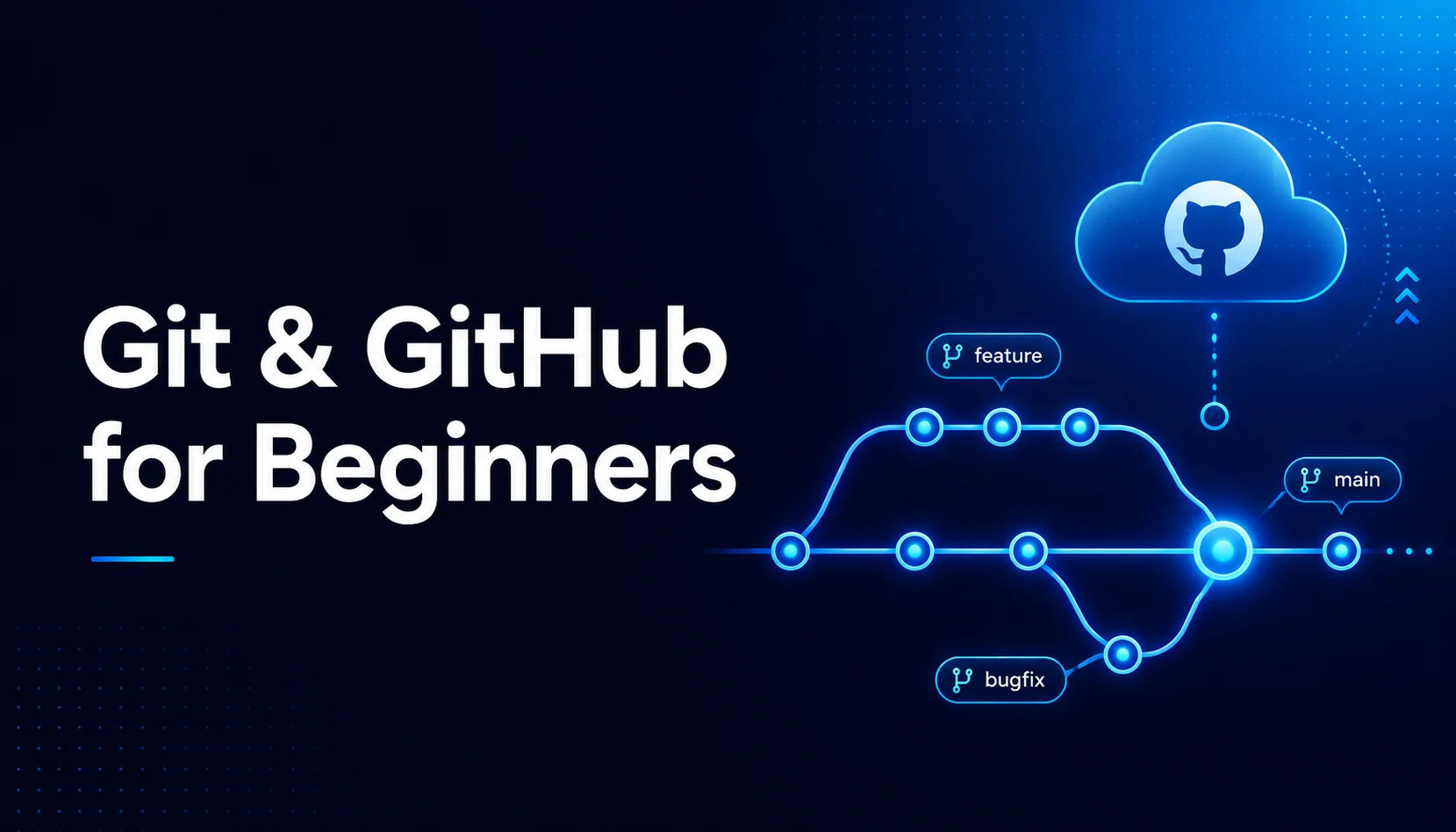
Git is a tool that runs on your computer. Its job is to track changes in your code over time. Every time you save a "version" of your project, Git remembers exactly what changed, when it changed, and who changed it. Think of it like a detailed history log for your entire codebase.
GitHub is a website. It stores your Git-tracked projects online so you can access them from anywhere, share them with other developers, and collaborate on code without emailing files back and forth.
The relationship is simple: Git works locally on your machine. GitHub stores that work in the cloud.
You can use Git without GitHub. But in practice, every developer uses both - because GitHub is where your code lives, gets reviewed, and gets seen by recruiters.
Why Every Developer Needs Git
Before I show you the commands, let me explain why this actually matters - because understanding the "why" makes the "how" stick.
Imagine you are building a website. It works perfectly. Then you decide to add a new feature. You write the code, something breaks, and now your previously working website is broken too. Without Git, your options are limited - you either fix it manually or lose hours of work.
With Git, you just run one command and your project goes back to exactly how it was before you broke it. Every change is saved. Every version is recoverable. Nothing is ever permanently lost.
That is the power of version control - and it is why Git is non-negotiable in professional development. Git is not just a tool - it is the foundation of how developers collaborate, and every serious development course now builds Git into its curriculum from day one. DevriX
Setting Up Git for the First Time
Before anything else, you need Git installed on your machine. Go to git-scm.com and download it for your operating system.
Once installed, open your terminal and tell Git who you are. This information gets attached to every change you save:
bash
git config --global user.name "Your Name"
git config --global user.email "your@email.com"
You only do this once. Git remembers it.
The 5 Git Commands You Will Use Every Single Day
You do not need to memorize 50 commands. As a beginner - and honestly, even as a professional - these five commands cover 90% of your daily Git usage.
1. git init
This turns a regular folder into a Git-tracked project.
bash
git initRun this once inside your project folder. Git will start watching every file in that directory.
2. git add
This tells Git which changes you want to save in your next version.
bash
git add .The dot means "add everything that changed." You can also add specific files: git add index.html
3. git commit
This saves a version of your project with a message describing what you did.
bash
git commit -m "Add homepage layout"Write commit messages that actually describe the change. Future you - and any teammates - will thank you.
4. git push
This sends your saved version from your computer to GitHub.
bash
git push origin mainThink of this as uploading your work to the cloud.
5. git pull
This downloads the latest version from GitHub to your computer. Useful when working in a team or switching devices.
bash
git pull origin mainPushing Your First Project to GitHub
Here is the complete workflow - from a folder on your computer to a live GitHub repository.
Step 1: Create a new repository on GitHub. Log in, click the "+" icon, and choose "New repository." Give it a name and click Create.
Step 2: In your terminal, navigate to your project folder and run:
bash
git init
git add .
git commit -m "First commit"
Step 3: Connect your local project to GitHub and push it:
bash
git remote add origin https://github.com/yourusername/your-repo-name.git
git branch -M main
git push -u origin main
Refresh your GitHub page. Your code is now live.
The One Habit That Separates Good Developers from Great Ones
Commit often. Not once a day - after every meaningful change.
Finished building a navigation bar? Commit. Fixed a bug? Commit. Added a new page section? Commit.
Small, frequent commits give you a detailed history of your work and make it easy to pinpoint exactly when something broke. Large, infrequent commits are messy and hard to reverse.
This habit takes less than 30 seconds each time. It has saved me hours of debugging more times than I can count.
What to Learn Next
Once you are comfortable with the basics, the next step is branching — creating a separate version of your code to work on a new feature without touching the main project. It sounds complex but follows the same simple logic as everything above.
For now, focus on building the habit: add, commit, push. Do it on every project you build — even personal ones. By the time you are in a professional environment or showing your work to recruiters, Git will feel completely natural.
Just learned Next.js and wondering how to structure a real project? Check out Next.js vs React: Which One Should You Learn First?
Frequently asked questions
What is the difference between Git and GitHub?
Git is a version-control tool that runs on your own computer and tracks changes to your code. GitHub is a cloud platform that hosts your Git repositories online, so you can back them up and collaborate with others.
What are the most important Git commands for beginners?
Five commands cover almost everything you need at the start: git init to start tracking a project, git add to stage changes, git commit to save them, git push to upload to GitHub, and git pull to download the latest changes.
Do I need GitHub to use Git?
No. Git works entirely on your own machine. GitHub is optional, but it is how most developers back up their work and collaborate, so it is worth learning alongside Git.
How often should I commit my code?
Commit after every meaningful change, not once at the end of the day. Small, frequent commits give you clear history and make it easy to undo a mistake without losing other work.
Once Git feels natural, the next step is picking what to build with. If you are deciding on a stack, my guide on Next.js vs React is a good next read. And if you are a founder rather than a learner, and you would rather have your product built for you, tell me what you have in mind (https://osamahabib.com/contact).
Osama Habib
Multan, Pakistan
Full Stack Developer specialising in Next.js, Node.js, and the MERN stack. I write about modern web development, system design, and practical engineering.